Available Help Tools are described below. For more details, click the command. See also, Connect with Support

| Command | Icon | Description |
|---|---|---|
| General Help |  | Opens the CS Director Online Help. |
Context Help |
| Click to change cursor to question mark. Then, move the question mark over a command or section of the window and click to display an online help topic about that icon or section. You can also use F1 on any CS Director window to get the Overview help page for that topic. To open the help page for a specific command, select |
Help Topic Request |
| Request additions or changes to online help. Tell us when you need more information. Click this icon to display a form where you can enter information about a new or existing help topic. |
What's New |
| Opens the Release Notes window, where you can view the release notes for the current CS Director release. When CS Director is first accessed after an update, the release notes display instead of the splash window. After the initial release notes display, select the check box to not display the release notes again until the next update. |
| Visit Web Site |  | Opens the Simpson Strong-Tie web site. |
| Visit Customer Zone |  | Opens the Integrated Component System Customer Zone web site. |
| About CS Director |  | Opens and About Simpson Strong-Tie Component Solutions Director window, displaying version and contact information. Click OK to close the window. |
Email Tech Support |
| Opens the CS Director Diagnostics window, providing a field to add any notes/details to accompany the email to the support team. Click OK to launch your default email utility, allowing you to add additional commentary, as needed.
The above dialog shows two options for packaging the diagnostic information.
|


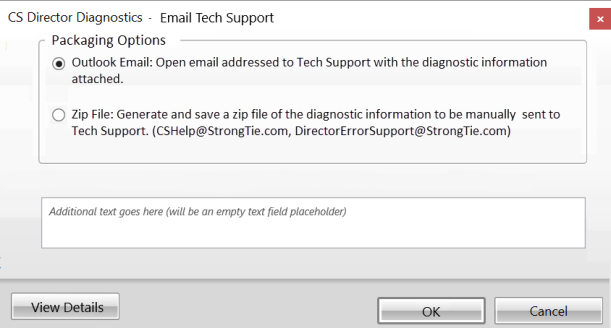
 The Email Tech Support command includes additional diagnostic information for review by support and an option to output to a zip file. Diagnostic information includes: