Summary
Tasks and statuses can be set up to represent the typical workflow of a project from conception to completion. Tasks can either be automatically assigned to new projects or can be assigned to specific projects as needed. You can track projects by project, plan, or lot.
Tasks and statuses automatically synchronize when connected to the server, ensuring web calendars are populated with current information.
Window
Administration - Tasks/Status
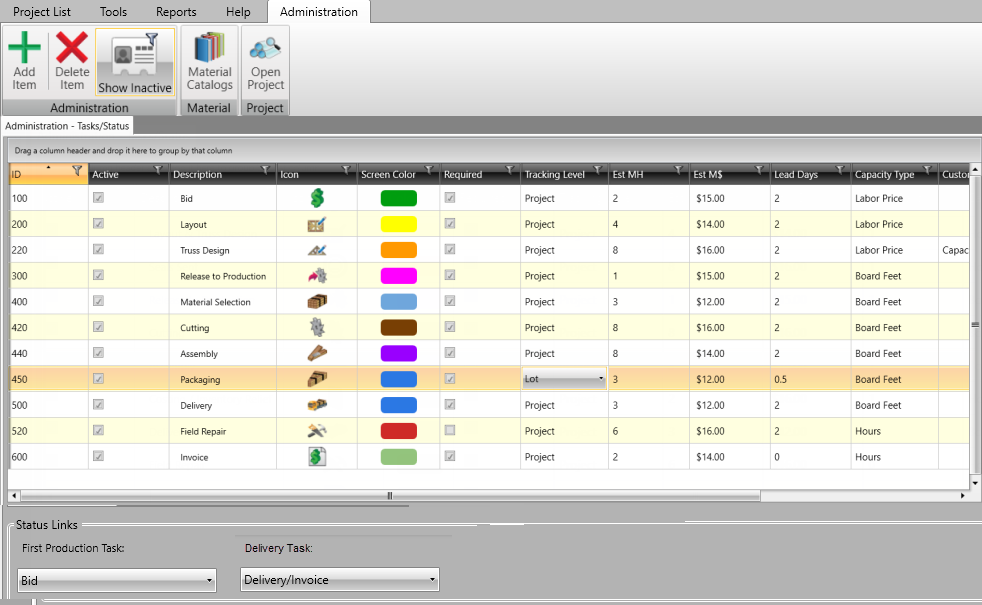
Field Descriptions
The following table lists field descriptions.
Section/Field
Description
ID
Assign numbers defining the task sequence in a project.
Active
Select to make a task active.
Description
Task name or type.
Icon
Icon to help identify a task.
Assign any existing icons from the dropdown list to your tasks.
To add your own icons to the dropdown, add your icon(s) to <Installfolder>/Client/Icons/24x24 (This is usually C:/SST/Client/Icons/24x24)
Standard size for task icons is 24x24
Icons are ordered in the dropdown alphabetically (prefix the name with a number or character to change the order)
The sync process copies newly added icons to the server and then to other clients, so they are available to all users
Color
Any color can be applied to any task. It is recommended that colors are applied strategically to give them some at-a-glance meaning.
Required
Assign which tasks are required as a minimum for each project.
Tracking Level
Level for tracking a task, by Project, Plan, or Lot. See additional Tracking Level information below.
This feature provides the ability to sub-divide a project so that you can track portions of the project at a time.
Sub-divided Design level work is tracked at the Plan/Elevation level
Sub-divided Production level work is tracked at the Lot level
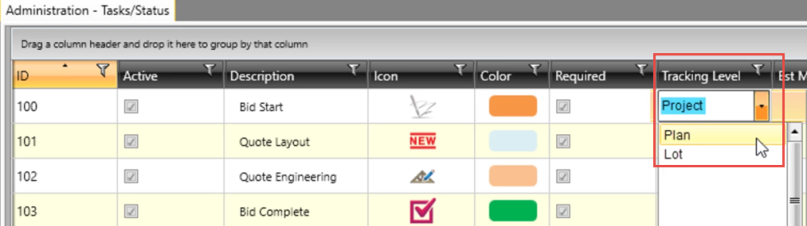
Define Tracking Levels
You can define several tracking levels:
Project Level tasks are generally performed only once per project.
- If a task is repeated in a given project, another instance may be manually added
Plan Level tasks are design tasks that may be performed more than once per project.
- Multiple sets of Plans may be designed by different designers
- Adding new Plans will automatically add associated tasks
- Sub-divided Design level work is tracked at the Plan/Elevation level.
Lot Level tasks are production tasks that may be performed more than once per project.
- Multiple Lots may be produced in the same project at different times.
- Adding new Lots will automatically add associated tasks
- Sub-divided Production level work is tracked at the Lot level
See Adding/Tracking Plans and Lots.
Est MH
Average man hours to complete a particular task. For details, see Estimated Hours Overview.
Est M$
Cost per man hour to accomplish this task.
Lead Days
Number of days needed to schedule and complete this task.
Capacity Type
Measurement for tracking capacity of tasks on web calendars. Select Capacity Types based on the task level:
Project Level Tasks
Project level properties include:
- Board feet (for project components)
- Estimated BDFT (Project Info > Estimated BDFT)
- Hours (from the Tasks tab > associated task)
- Labor Price (for the project’s components)
- Linear Feet of Lumber (for the project’s components)
- Linear Feet of Truss Span (for the project’s components)
- Price with Delivery (sum for all elevations)
Project Level Numeric Custom Fields
Plan Level Tasks
- Hours (from the Tasks tab > associated task)
- Plan/Elevation Level Numeric Custom Fields
- The sum from all elevations
Lot Level Tasks
- BDFT (for Lot components)
- LNFT of Span (for Lot components)
- Labor Price (for Lot components)
Custom Display String
Select a custom format for displaying project names for each task on a web calendar. See Create Custom Display Strings for information.
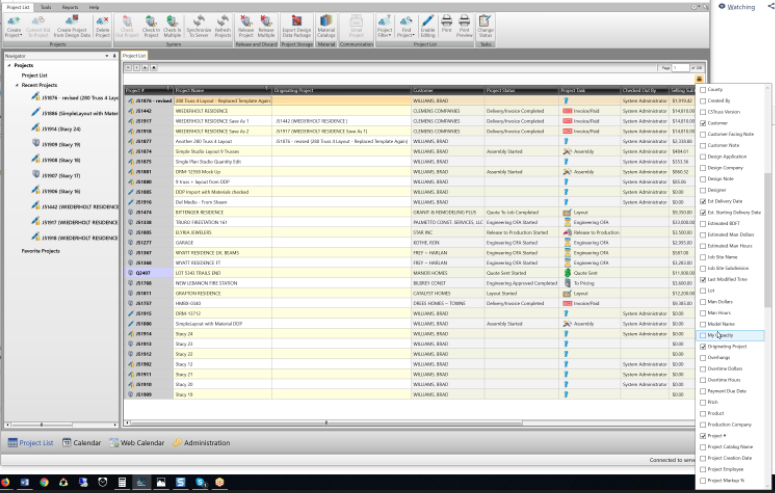
Use this format: [Icon] [Project #]-[Total Bdft]-[Additional fields]
Fields (variables) entered in square brackets must be from the Project List; these will contain the value of the variables specified.
Examples
Items in [ ] refer to fields and items in red denote a custom field.
Delivery Task: [Project #]-[Total Bdft]-[Truck]-[JobSite City]-[LongestTruss]
Production Task: [Project #]-[Total Bdft]-[SawUnits]-[Est Delivery Date]
Identify email addresses to be automatically notified for defined changes in task status
When
Identify the status changes on a task to automatically trigger sending emails
First Production Task
Establish which task is the first task for actual production. Select from the drop down list
Delivery Task
A drop down list of all current tasks that is customizable by the user. Select a task from the drop down list.
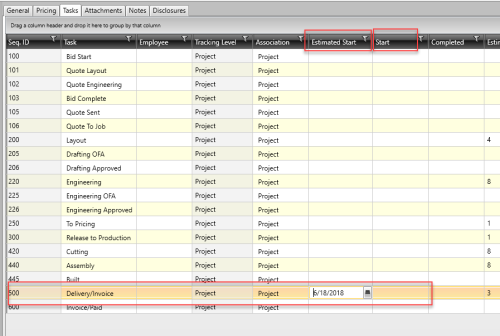
Edits made on the Tasks tab updates the linked Delivery task information. This reduces the effort required to set the Delivery values and minimizes mistakes due to dual entry of data.
Edits on the Tasks tab will update the Project List:
Delivery task > Estimated Start Date will update Project List > Estimated Starting Delivery Date
Delivery task > Start Date will update Project List > Starting Delivery Date
Procedure
In the Project List window, select Administration.
Select Administration > Tasks/Status.
You can do the following on the toolbar:
- Add/delete an item to the Administration task list
- Display inactive customers and employees that are linked to existing projects, but marked as inactive so that their name does not displays in dropdown lists for new projects
- Access Material Catalogs
- Open/find project by number or name
 Notes:
Exiting the Administration Tasks/Status page updates information on the server, allowing other users (and web calendars) to receive the changes. All changes are applied to newly created projects; changes are not automatically applied to existing projects. Use the Rebuild Tasks from Defaults tilitiesfeature on the Projects list tab to update existing projects to match the modifications on the Administration Tasks/Status page; previous task data is not saved.
When a new task is added on the Administration Tasks/Status page, the new task is available in the right-click > Add Item function (the task can be added manually). When a task used in existing projects is deleted in Administration Tasks/Status, the task becomes inactive.
Automatic update for existing task records:
Edits to tasks in existing projects, other than the Tracking Level, will automatically propagate to the existing projects
Existing projects do not automatically pick up changes to the Tracking level in the Admin > Task/Status tab
Existing projects do not automatically pick up newly added tasks in the Admin > Task/Status tab
Manual update for existing task records:
- The Project > Tasks tab (or change Status dialog) > Rebuild Tasks from Defaults can be used to manually update the tasks in existing projects to match new tasks and tracking level edits in the Admin > Task/Status tab.
Related Topics