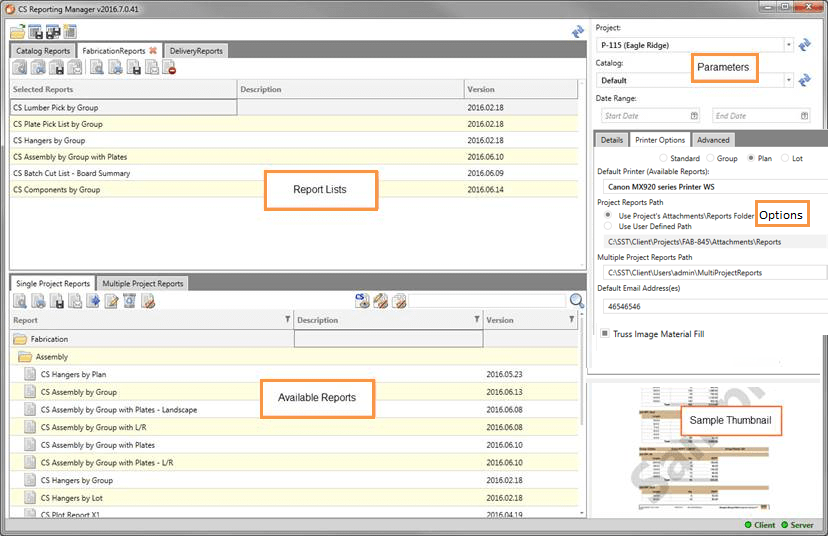
CS Reporting Manager makes working with reports easier. The Reporting Manager opens in a separate window that remains open while you perform other operations within CS Director; this eliminates delays related to opening and closing the reporting utility.
CS Director is installed with many default reports, organized by Fabrication and Pricing. The default reports have a prefix of CS in the report name. Select the report from the Report list, double-click, or use the arrows to move it to the Selected Reports list.
Once reports are selected, use the output settings and options on the top to preview, print, or email the report.
It is possible to Save a selection of reports to recall at a later time. This time-saving feature allows you to create one or more Report List for specific work breakdowns such as Bidding, Picking, Cutting, Fabrication, Internal, Payroll, Labor, and Scheduling.
 Note: Multi-project reports require that all Clients and Server are set up in a domain.
The CS Reporting Manager user interface is comprised of five sub-sections:
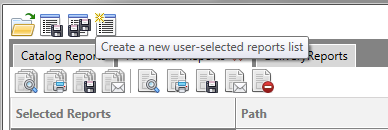
- Tool tips display when hovering over all commands.
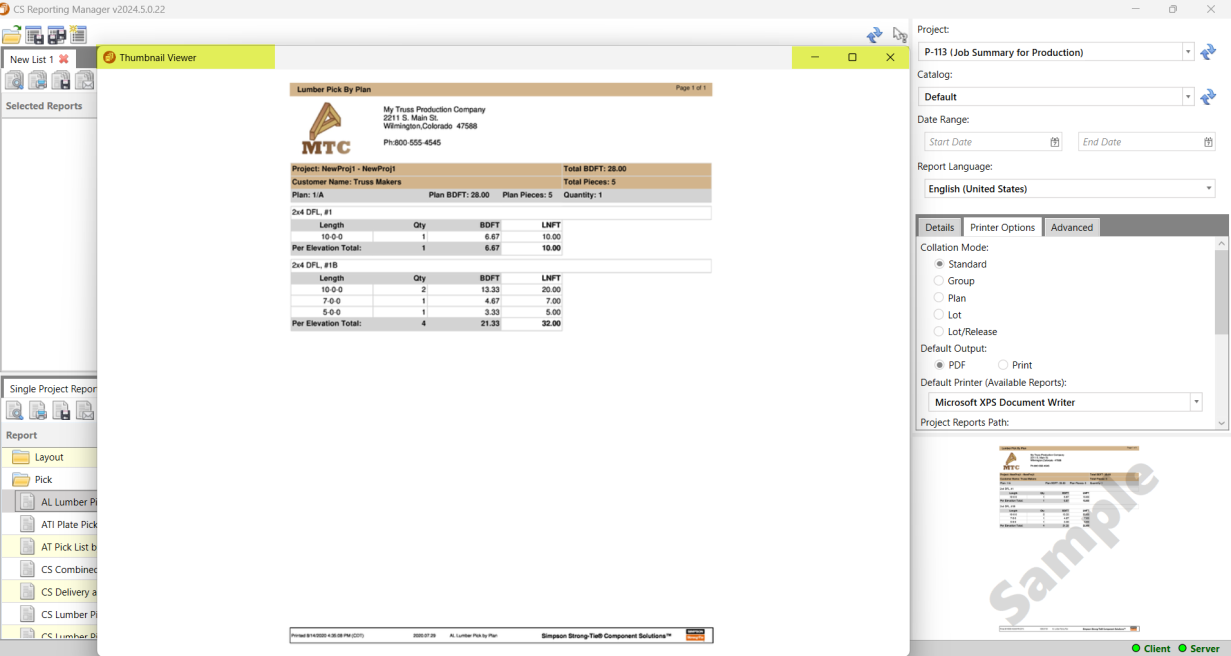
 Click the sample report image in Reporting Manager to display a full-size version of the report.
Notes:
- To view complete report images, you must be connected to the Internet the first time you run Reporting Manager.
- Previewing a report does not display larger images; you must save the image as a pdf to see the images.
- There may be a slight delay when saving as a pdf.
- Preview mode always includes the image hyperlink, but the pdf will not; this cannot be turned off in the preview mode.
- The file sizes stay about the same as previous reports.
- Display the report version in the report lists.
- Apply help notes to each report.
- This is simple text based help intended to supply information specific to the individual report such as fields in the user interface that are referenced in the report.
- Help Notes for CS Standard reports cannot be customized by users. Please contact the Help desk to request modifications to these Help Notes.