Purpose
EnvData settings provide initial values for dialogs, input data, behind-the-scenes initialization, and other customizable defaults that makes it easier for you to perform tasks in Truss Studio. Default settings are applied if not customized by the user.
Steps
- Navigate to the Env Data window.
- Click the EnvData button to display options.
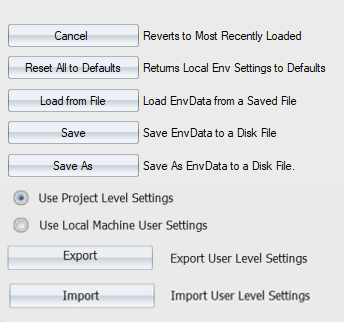
The following options display:
- Cancel: Discards any changes made since the last Save.
- Reset All to Defaults: Returns all Env Data settings to their out-of-box settings. A warning displays, confirming you want to return all settings to their default. Clicking Yes resets the current session only and does not take permanent effect until you click Save. When you click Save, Truss Studio automatically create a backup of the current EnvData file.
- Load from File: Provides the ability to load Env Data settings to a truss or layout from an uploaded file.
- Save: Saves changes to a truss and the environment as an .tdlEnv file. Note that if you change an Env Data setting while a truss is open and press Save, you are saving the change to the current truss as well as updating the Env Data file.
- Save As: Saves the environment as a single .tdlEnv file to a selected location.
- Use Project Level Settings: User interface settings are retrieved from the project EnvData file.
- Use Local Machine User Settings: When selected, Truss Studio uses the settings from the local level. Note that many color settings are impacted by Local Machine User Settings, except those indicated below. These settings will not change and will remain consistent regardless of where the layout is opened or which user opens it. See Env Data Settings & Features.
- Load from Master Level: Replace layout- or truss-level presets with current settings saved to Master Level EnvData.
- Copy to Master Level: Copy the current/edited presets to Master Level EnvData.
- Export User Level Settings: Opens a window where you can export settings and save to a file.
- Import User Level Settings: Opens a window where you can import settings from an existing file.
 Note: When you click Save, a backup (.bak) copy of the current EnvData file is created.