Summary
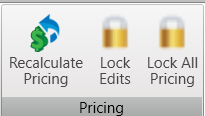
Use the Pricing tab to adjust the overall project markup, tax rate, and individual item pricing and markup. Pricing tab tables represent Components, Miscellaneous items, and a breakdown of Plan/Elevations. Update the markup and pricing as needed to maintain current pricing for bids, invoicing, and other accounting reports.
- Columns can be filtered, sorted, and arranged for a customized view.
- Values that have been manually edited display in bold font.
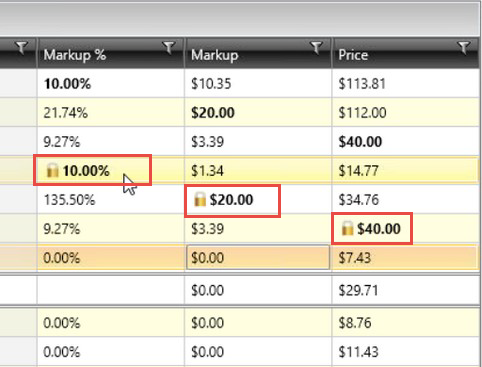
- Values that have been locked display the lock icon.
 Notes:
Edited values can be locked for cases when you only want to recalculate some of the edited values (and retain the locked edits)
Edits are never made by the system.
Edits made to certain fields on this tab are recorded on the Project History tab.
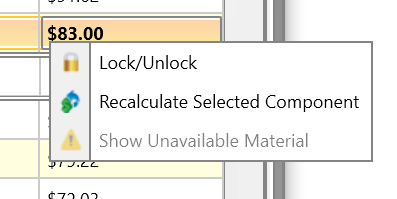
The right-click dialog allows the ability to:
- Enable/disable the Lock state
- Recalculate only the selected component
- Open the Project Warnings dialog when the component has unavailable material
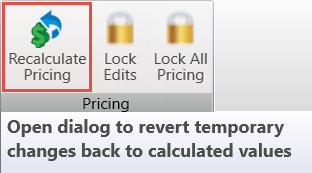
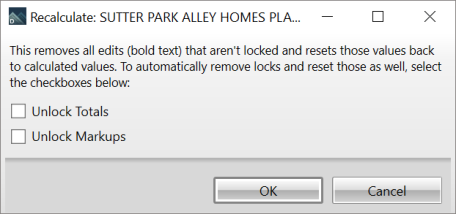
- The Recalculate Pricing button provides the ability to recalculate unlocked and select locked edits .
- Unlock Totals applies to the Elevation > Sub Total and Component > Price.
- Unlock Markups applies to the Component > Markup % and Component > Markup.
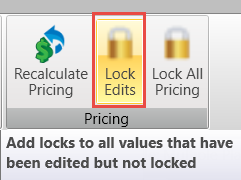
Lock Edits
- The Lock Edits button provides the ability to quickly lock all edited values.
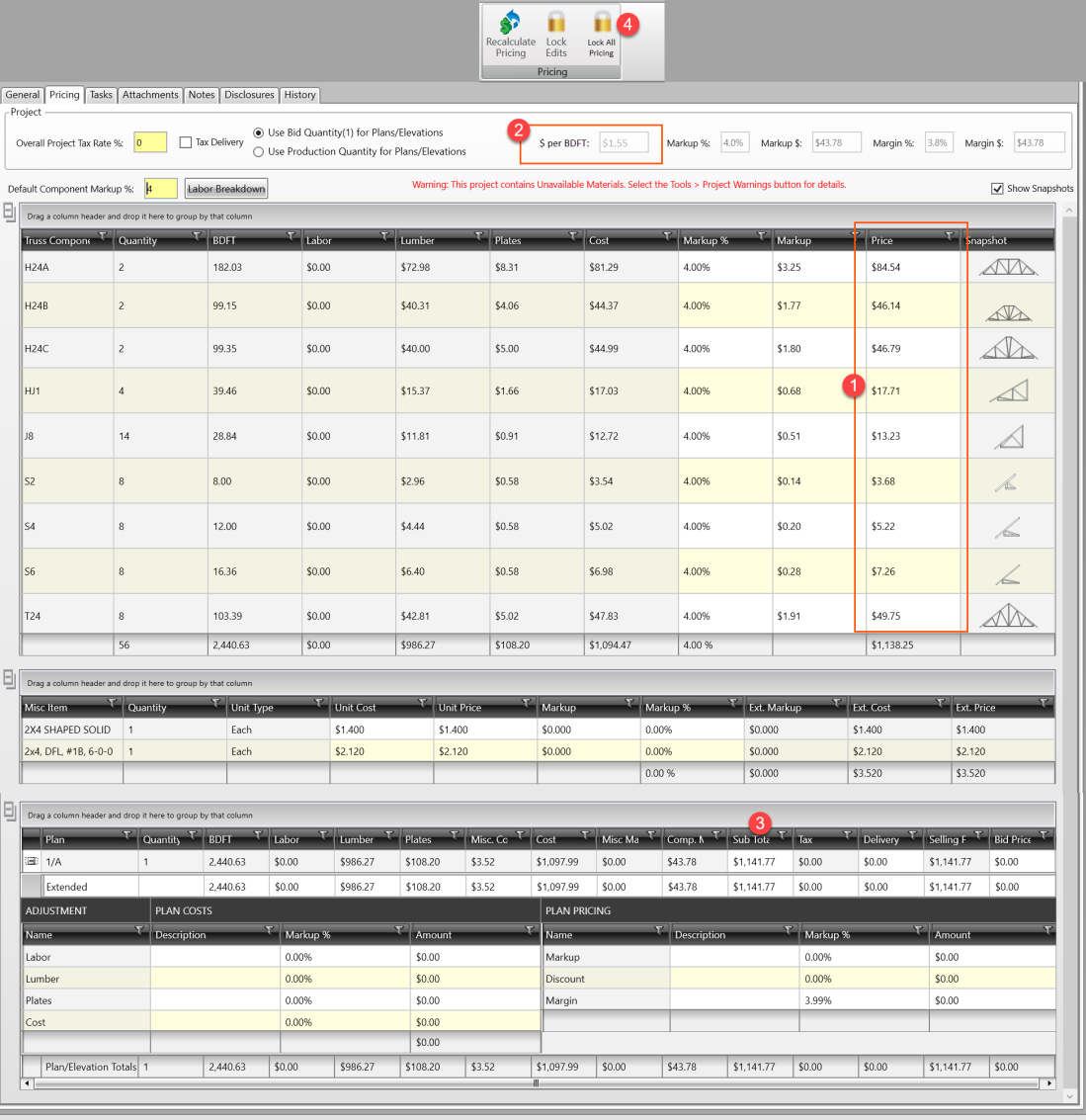
- The Lock All Pricing button provides the ability to automatically lock the following:
- Component pricing
- Selling subtotals for Elevations
- EWP pricing
Note: This feature is useful is when exporting trusses (DDP) to another user for optimization, and re-importing them into the original project, without changing any pricing.
 Example workflow
The following graphic illustrates a sample workflow:
Use the Default Component Markup to adjust truss pricing to match the customer quote. You can further modify the markup for a single truss to obtain an exact price.
The $ per BDFT displays for all components. Use this to verify that the correct markups were applied.
The Selling Subtotal matches the sums of all associated Components, Misc Items and EWP.
You can do the following:
- Control markup at the individual component and elevation levels. To assign a higher markup or labor cost to an item, have make adjustmentsin the pricing grid.
- Setup standard mark ups and discounts and enter adjustments as needed.
- Apply additional individual discounts, markups or charges to any of the job costs, such as lumber, labor, plates or the overall cost.
- Miscellaneous items allow you to enter any product or service and mark them up differently from components or other miscellaneous items.
- Enter a total price for any component or plan and all other prices automatically adjust. This allows you to force the pricing to match a competitor’s bid with ease.
- View/report the $ per BDFT of all of the components
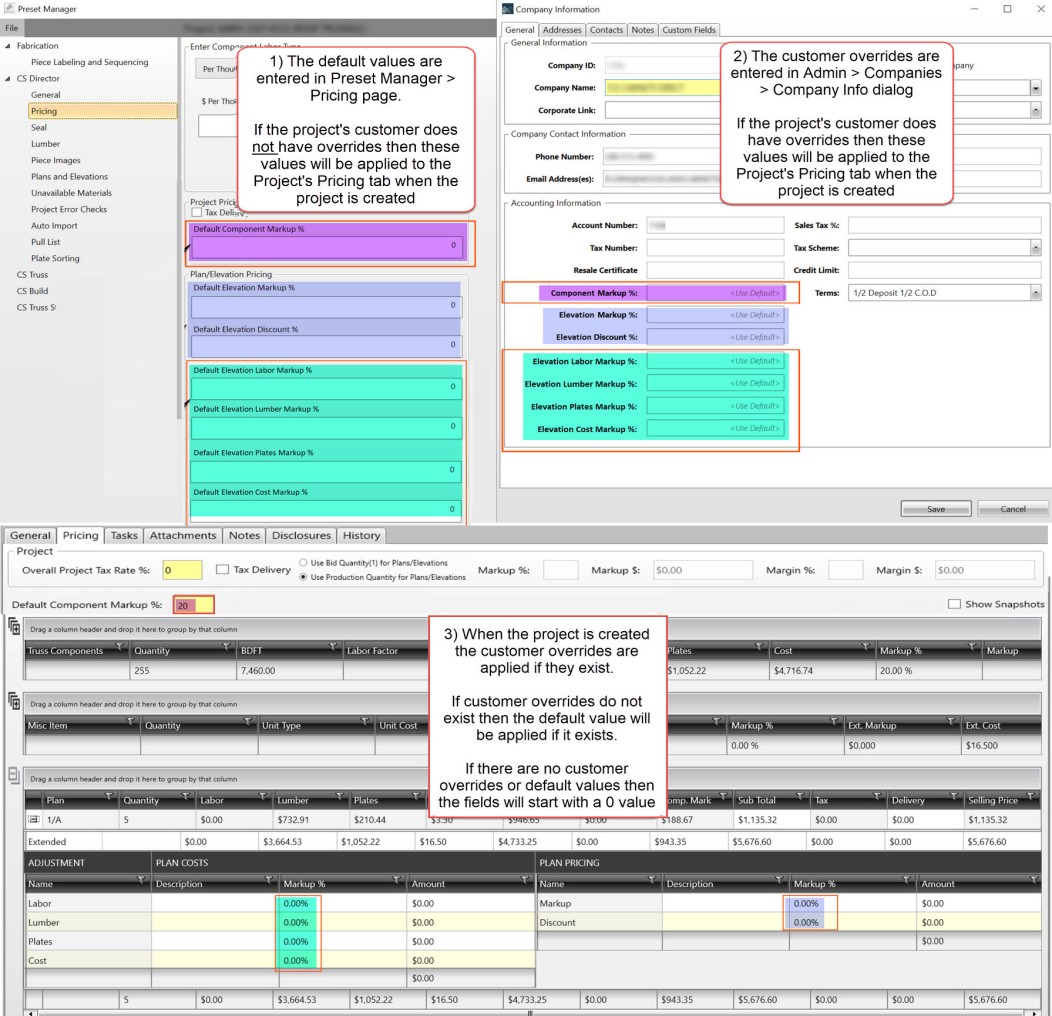
You can apply any of the Pricing Tab Markups to:
- Set the default starting value in Preset Manager
- Set an override that is specific to an individual customer (easier or harder to work with) to a value that is lower or higher than the default
These settings are applied to the Pricing Tab when the project is created. The settings can be manually overwritten on the Pricing Tab at any time.
Window
Project View - Pricing Tab
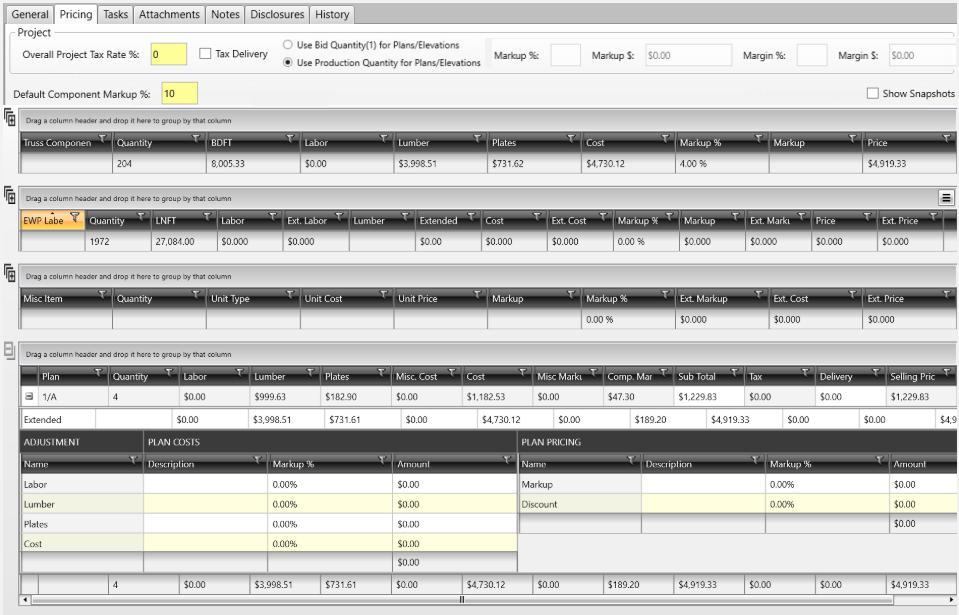
Field Descriptions
The following table lists field descriptions.
| Section/Field | Description |
|---|---|
| Overall Project Tax Rate % | Overall default tax rate for the project |
| Tax Delivery | Select whether a delivery should be taxed. If this option was not set up using Presets, the default is unselected; this option can be changed. To view this option in Presets, see Preset Manager Field Descriptions |
Use Bid Quantity(1) for Plans/Elevations | You can choose to set the Plan/Elevation quantity to 1:
|
| Use Production Quantity for Plans/Elevations | Use production (Component tab/Batching) quantities on the Pricing tab |
| Default Component Markup % | Overall default percentage markup for the project |
| Markup % | Current markup percentage for the project |
| Markup $ | Current markup dollar amount for the project |
| Margin % | Current margin percentage for the project |
| Margin $ | Current margin dollar amount for the project |
| Show Snapshots | Select to display truss profile snapshots |
| Components Grid | |
| Truss Components | Name of the component. |
| Quantity | Total number of the components included. |
| BDFT | Total board feet of nominal lumber for material used on the truss. |
| Labor Factor | Set up in Tools > Preset Manager > Pricing for either Per 1000 Bdft or Total per Truss. For details, see Preset Manager Field Descriptions. |
| Labor | Charge assigned to the truss based on the labor factor. |
| Lumber | Total cost of all the lumber used in the truss. Set up in Project Materials or Material Catalogs >Lumber > Costing > Cost/1000 BDFT column. For details, see Costing for Lumber. |
| Plates | Total cost of all plates used on the truss. Set up in Project Materials or Material Catalogs > Plates > Selection & Costing > Cost column. For details, see Selection & Costing for Plates Field Descriptions. |
| Cost | Sum of Labor, Lumber and Plates. |
| Markup % | Percent of markup assigned to the truss. |
| Markup | Total markup calculated based upon the percent of markup. |
| Price | Total amount for cost and markup. |
| Misc Items Grid | |
| Misc Items | Name of miscellaneous item. |
| Quantity | Total number of the miscellaneous items included. |
| Units | Unit of measurement for the miscellaneous item. |
| Cost | Cost of the unit type. |
| Price | Unit cost including the markup. |
| Markup | Amount the unit price increased based upon the markup percent. |
| Markup % | Amount to markup the unit cost of the Misc item. |
| Ext. Markup | Total quantity times the markup amount |
| Est. Cost | Total quantity times the Misc items unit cost |
| Est. Price | Extended markup plus the extended cost. |
| Plans Grid | |
| Plans | Name of the plan. |
| Quantity | Quantity of the plan ordered. |
| Labor | Total labor charged for the plan. |
| Lumber | Total cost of lumber used on the plan. |
| Plates | Total cost of plates used on the plan. |
| Misc. Cost | Total cost of all miscellaneous items on the plan. |
| Cost | Total cost of labor, lumber, plates and miscellaneous cost of the plan. |
| Misc Markup | Markup of miscellaneous items. |
| Comp. Mark | Total markup of all the components. |
| Sub Total | Pre-tax total price of the plan. This field is linked to the Plans/Elevations > Elevation Properties > Bid Price field to ensure that bid pricing matches invoice pricing. |
| Tax | Tax assigned to plan. |
| Delivery | Delivery charge assigned. |
| Selling Price | Total price of the plan for all items. |
Accessing
In the Project List window, select a project.
In the Project View window, select Project Info.

Select Pricing Tab.
To display details for the Components grid, click
 .
To display details for the Misc Items grid, click
.To display details for the Plans grid, click
.
For sample detailed information entered on the Pricing Tab, see Pricing Tab Fields - Example.
Related Topics
- Costing for Lumber
- Preset Manager Field Descriptions
- Selection & Costing for Plates Field Descriptions
- Define Presets for Markup & Discount