
Summary
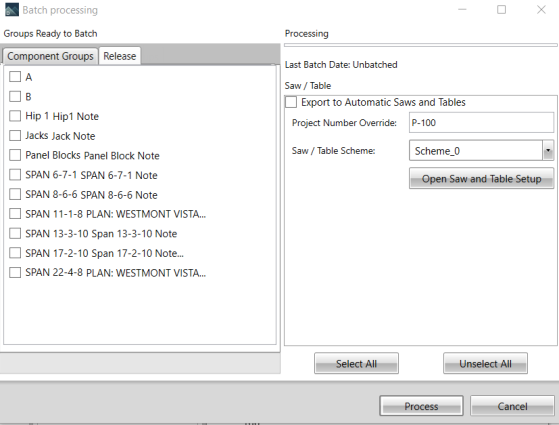
Once all groups are defined and trusses sequenced, use the Batch Process function on the Tools ribbon before generating any reports to ensure all data is current. Also, use Batch Process to generate lumber yard output for automated saws and tables.
Window
Batch Processing
Once trusses are assigned to releases, they can then be batched by release.
- Click Batch Process and select the Release group to batch.
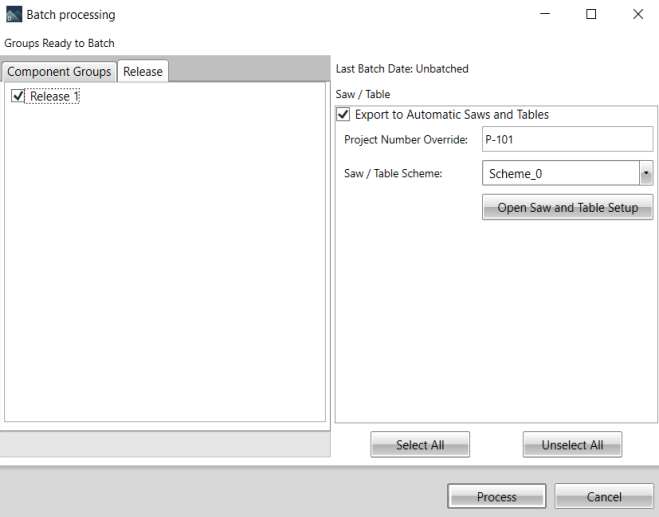
- Click Process to start the batch process.
 Notes: You can edit the note by double-clicking it and making edits. The release must be rebatched in order to include the new note.
When batching an elevation by Release, any component in the release is included, even if the Release does not have a lot reference.
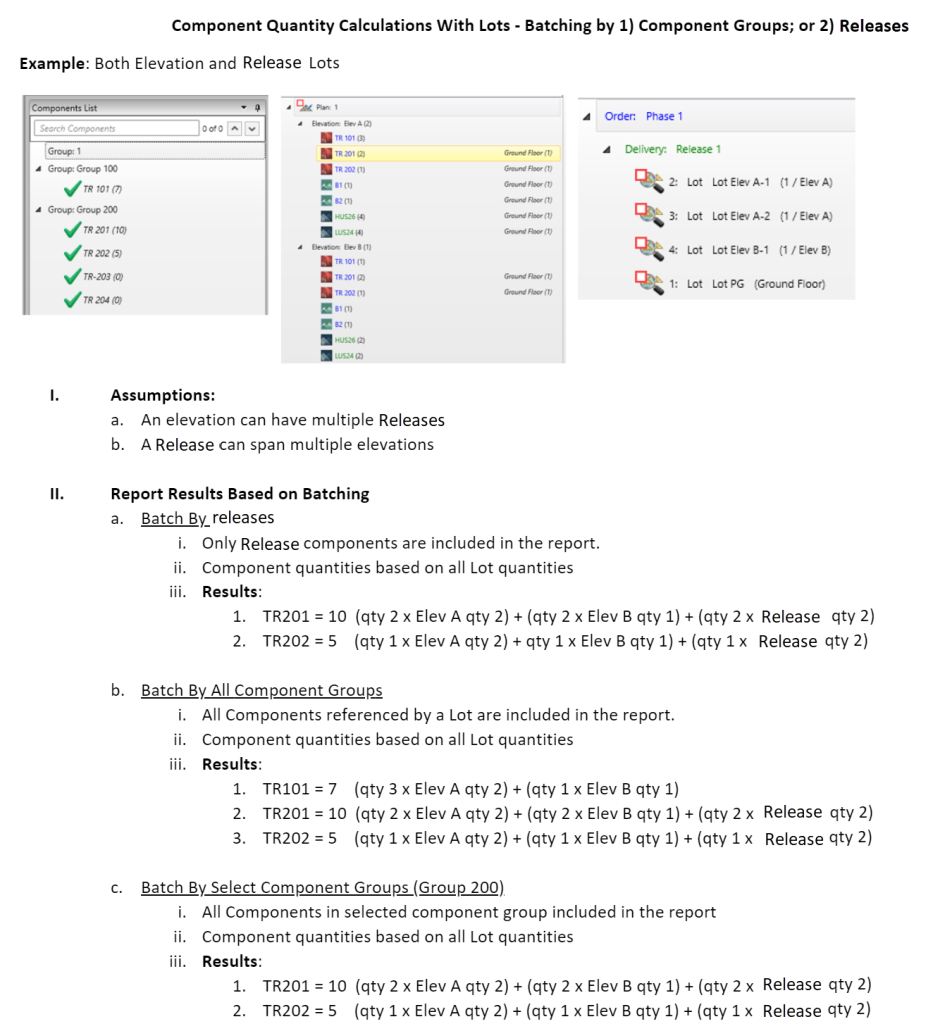
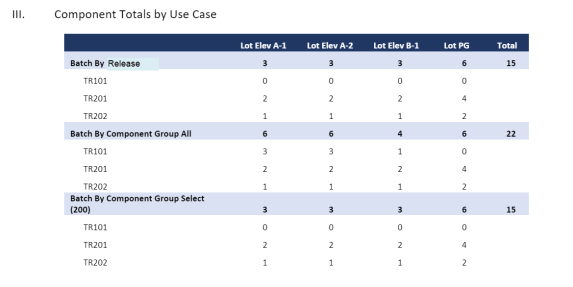
 Example of expected quantity results when batching by Component Groups or Releases
Standard Assembly/Batch Reports
The following standard reports work for releases:
- CS Assembly by Release
- CS Assembly by Release with Plates – Landscape
- CS Batch Cut List by Group – Consolidated Angles
- CS Batch Cutting by Group and Saw
- CS Batch Cutting by Group and Saw with Truss
- CS Batch Cutting by Saw and Group
- CS Batch Cutting by Saw and Group with Truss
All other “by group” production reports will display the following message if batched by release:
"This report is used with Component Group batching only. Please re-batch by Component Group."
Field Descriptions
The following table lists field descriptions.
Section/Field
Description
Groups Ready to Batch
All groups of trusses established in Project List > Components window are listed here for inclusion or exclusion from the Batch Process
Select All
Click to include all groups for the Batch Process
Unselect All
Click to exclude all groups for the Batch Process
Export to Automatic Saws and Tables
Create files for established Automatic Saws and Tables
Project Number Override
Override or change project number for production purposes
Saw/Table Scheme
Select a previously established saw/table scheme to process this batch
Open Saw & Table Setup
Click to open the Saw & Table Setup as defined in Presets
Progress Bar
Provides a visual cue for when the process is active and when it is completed
Process
Click to generate the output
Cancel
Click to exit the Batch Processing window
Accessing
In the main Project List window, select Tools.
Select Batch Process.
In the Batch processing window, add and revise information as needed.
Related Topics