Description
The ASCE-7 defines live loads to apply when designing structures, based on occupancy and use. The IBC and IRC reference this standard when specifying additional design load checks, such as uninhabitable attics with or without storage, and maintenance loads.
Exact requirements can be found in the Building Code documents referenced below.
- ASCE7-10: Table 4.3-1
- ASCE7-22: Chapter 4, Sections 4.12.1, 4.12.2
- IBC 2021: Chapter 16, Sections 1607.1-1607.4 and 1607.22
- IRC 2021: Chapter 3, Section R301.5 Table R301.5
When inconsistencies are found between building loads and code requirements, they must be confirmed during component review, which leads to delays. It may also lead to questions by the building department or EOR. It remains the responsibility of the building designer and local authority to verify all design parameters. The best practices described in this document do not specify the requirements, which may vary with local jurisdictions.
Design Practices
In Load Template Manager, the following optional Live Load settings are available to apply to components:
- Non-Concurrent BCLL
- 20 psf Storage
- 300 Lbs TC Maintenance
- 200 Lbs BC Man Load
- 2000 Lbs Safe Load
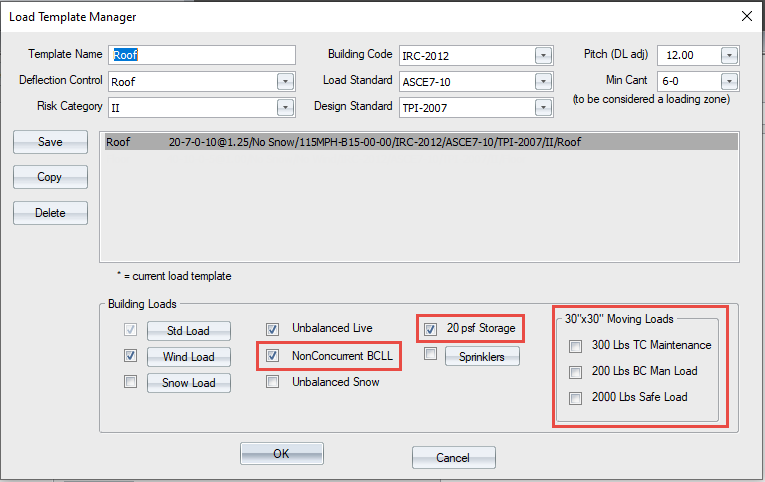
These optional Live Loads can be enabled or disabled as specified by the Building Designer or EOR in the construction documents. Optional loads are automatically enabled in Truss Studio when the code selected in Load Template Manager requires them.
In general, load checks are required by building code, but they can be enabled/disabled, as specified by the building designer, when they do not apply.
For IRC and IBC building codes, 1 and 2 above should be enabled for all roof trusses
Uninhabitable attics without storage applies a 10 psf non-concurrent bottom chord live load on trusses where there is no rectangle of 42” x 24” in the truss plane. The non-concurrent BCLL is applied to cover occasional access to the attic space for other purposes, such as maintenance. This design load also allows the attic access to be placed anywhere along the truss.
When this check is applied in Truss Studio, a new load combination is created called Dead + NCLL.
The 10 psf load is not applied concurrently with other live loads.
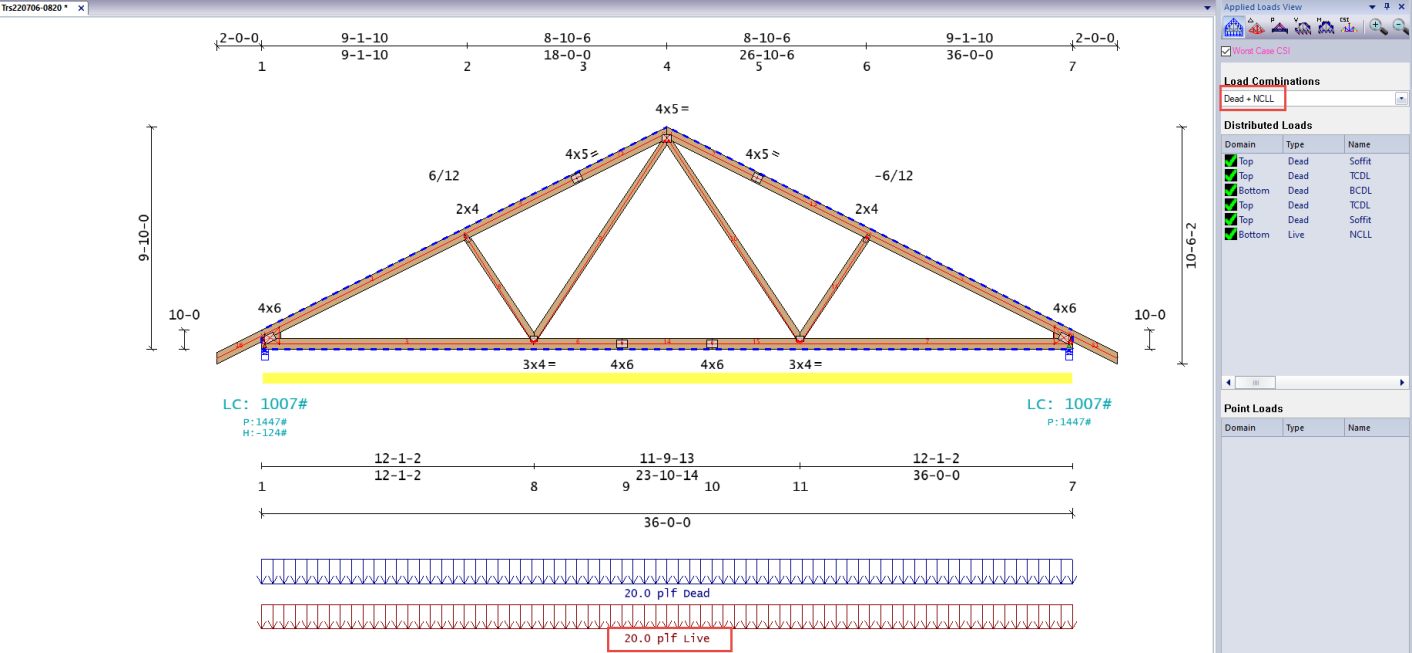
- Non-Concurrent BCLL With No Storage Load Case*
This load is the minimum design requirement for areas in the attic where open panels in the truss webbing allow for additional storage space.
The uninhabitable attic with limited storage load applies when the following are true:
- A space 42” x 24” exists in the truss plane between chords and webs.
- There is a 20” x 30” attic access via scuttle or pull down.
- The bottom chord pitch must be less than 2/12 to be recognized for storage.
- In the IRC, the above criteria must be met and the insulation depth must be less than the depth of the joist or truss bottom chord member.
In Truss Studio, two load cases are created which represent this check. In the first, a 20 psf storage load is automatically applied to panels in which the 42”x24” rectangle can fit and is concurrent with dead load only.
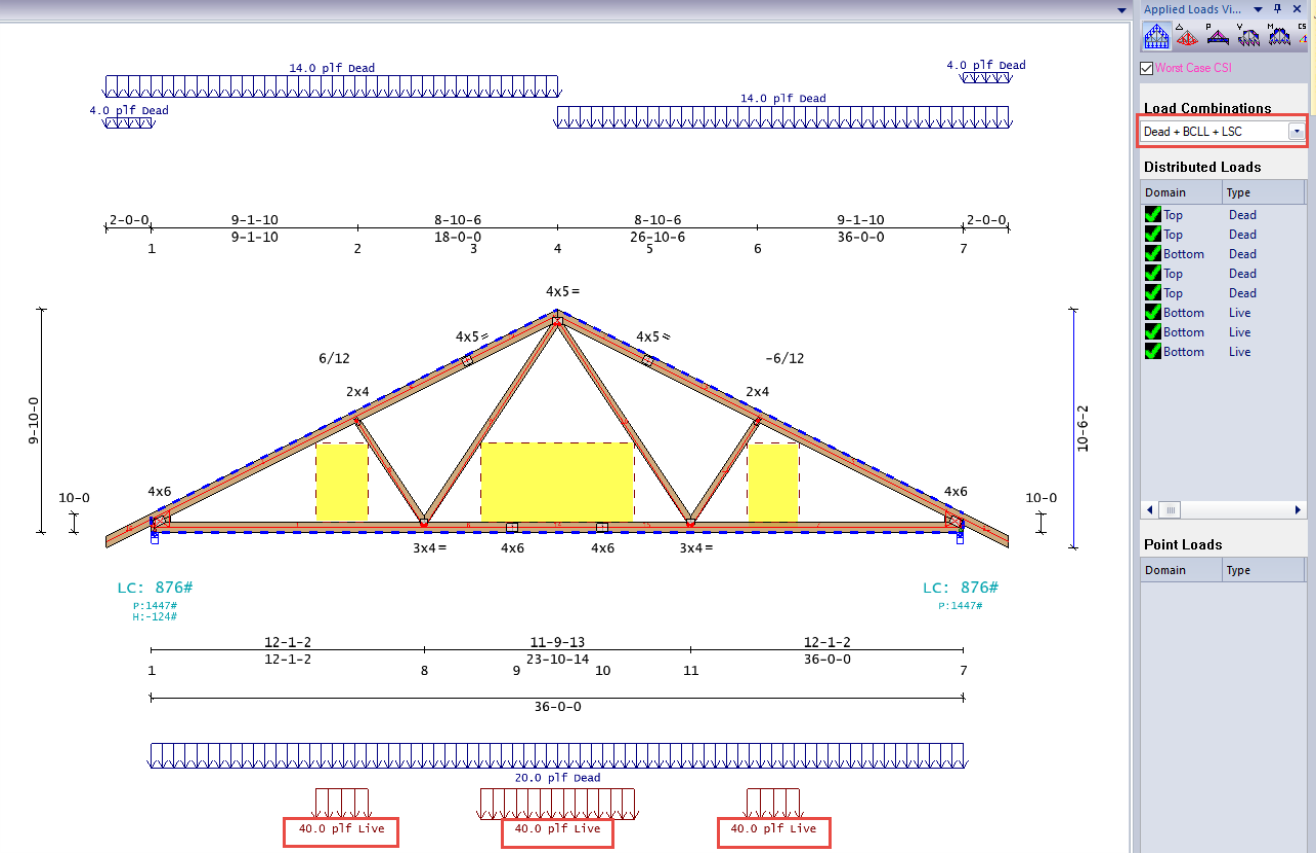
Non-Concurrent BC Storage Load Case 1
In the second load case, a reduced storage live load is applied concurrently with reduced roof live loads and dead load.
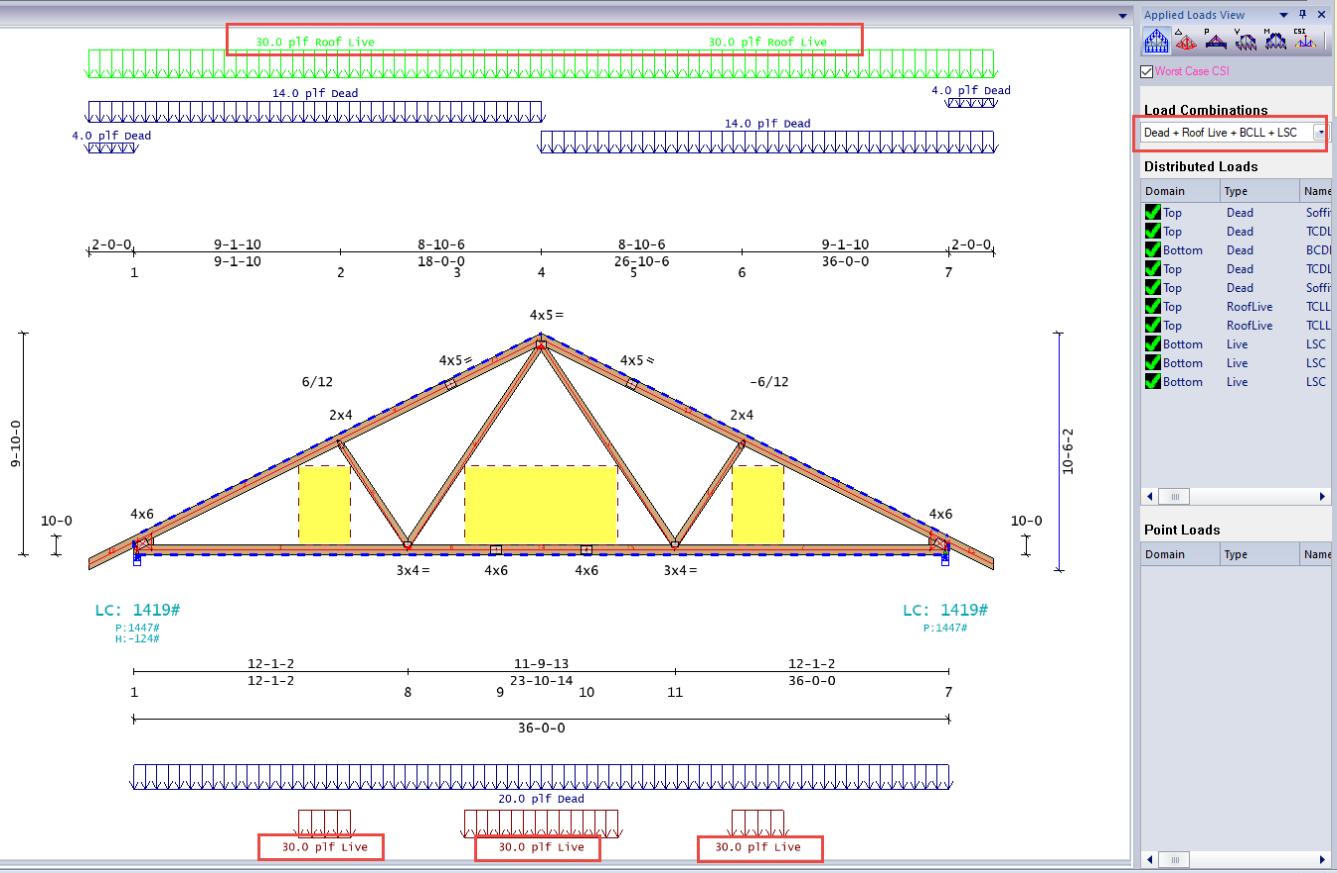
Non-Concurrent BC Storage Load Case 2
The storage load is typically applied to all trusses, allowing scuttle access/opening to be placed at any location where clearance is available.
 Note: If there is no panel in the truss where a 42” x 24” fits in the truss, no additional load is applied. In the example below, the same truss is shown in the same load case using a web configuration where the rectangle cannot fit in any panel.
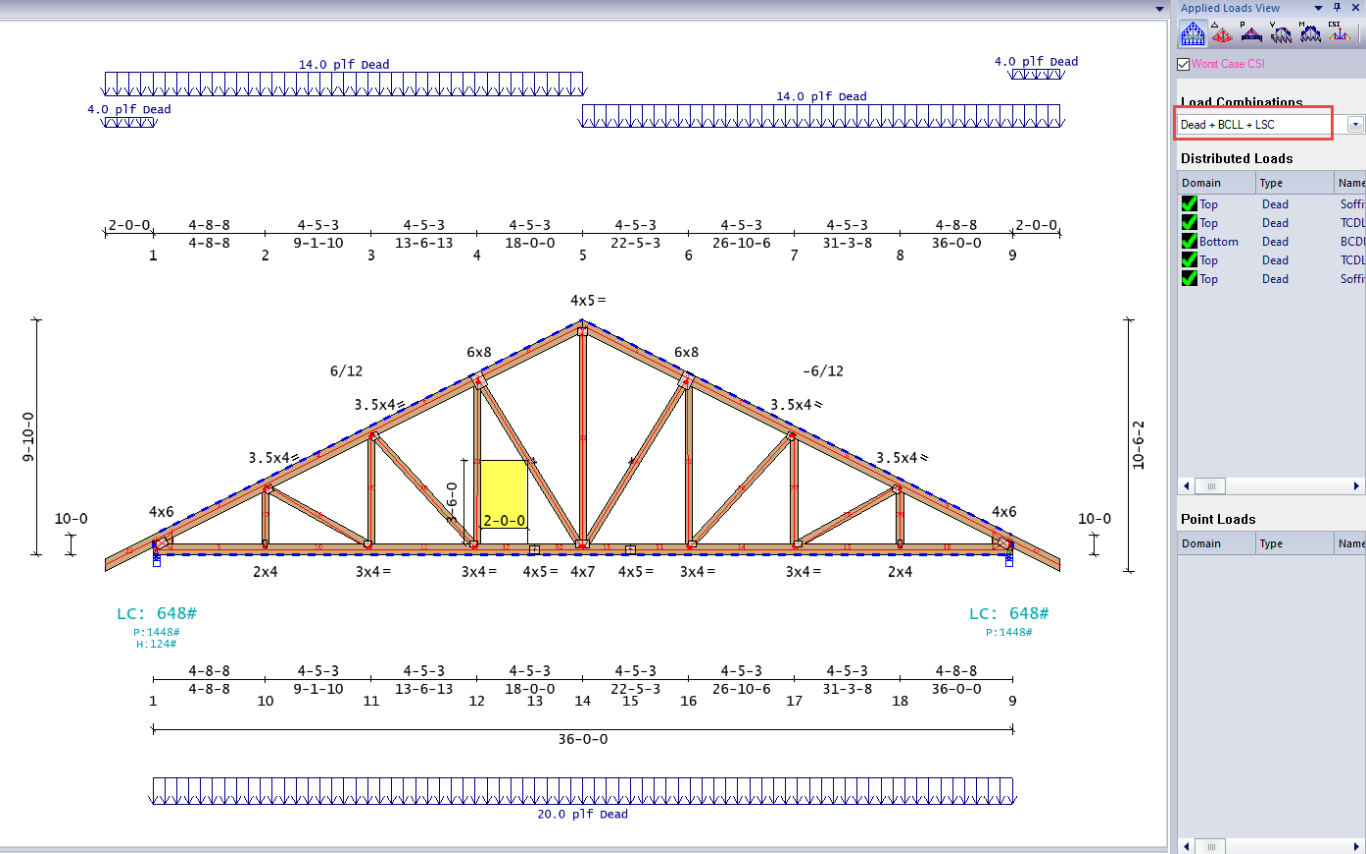
Non-Concurrent BC Storage Load Does Not Apply
Neither checks 1 nor 2 apply to floor trusses and can be disabled for those designs. When selecting a floor type load template (4x2), these checks are automatically turned off.
Live Load checks 3, 4, and 5 generally do not apply to residential occupancies. For buildings designed in IBC Category II, checks 3 and 4 may or may not be required, depending on whether the presence of maintenance workers is expected. In these cases, verify the requirement with the building designer. In Category III or IV applications, these checks are likely required.
- When designing with IRC in CS Studio, these checks are disabled by default.
- When designing with IBC in CS Studio, these checks are enabled by default.
- The top chord maintenance load is expected where maintenance workers will be present.
When IBC is selected on the Load Template Manager dialog, the 30” x 30” moving loads are automatically enabled.
The 300 LbsTC Maintenance load creates the following moving point load cases applied to the truss for the top chord.
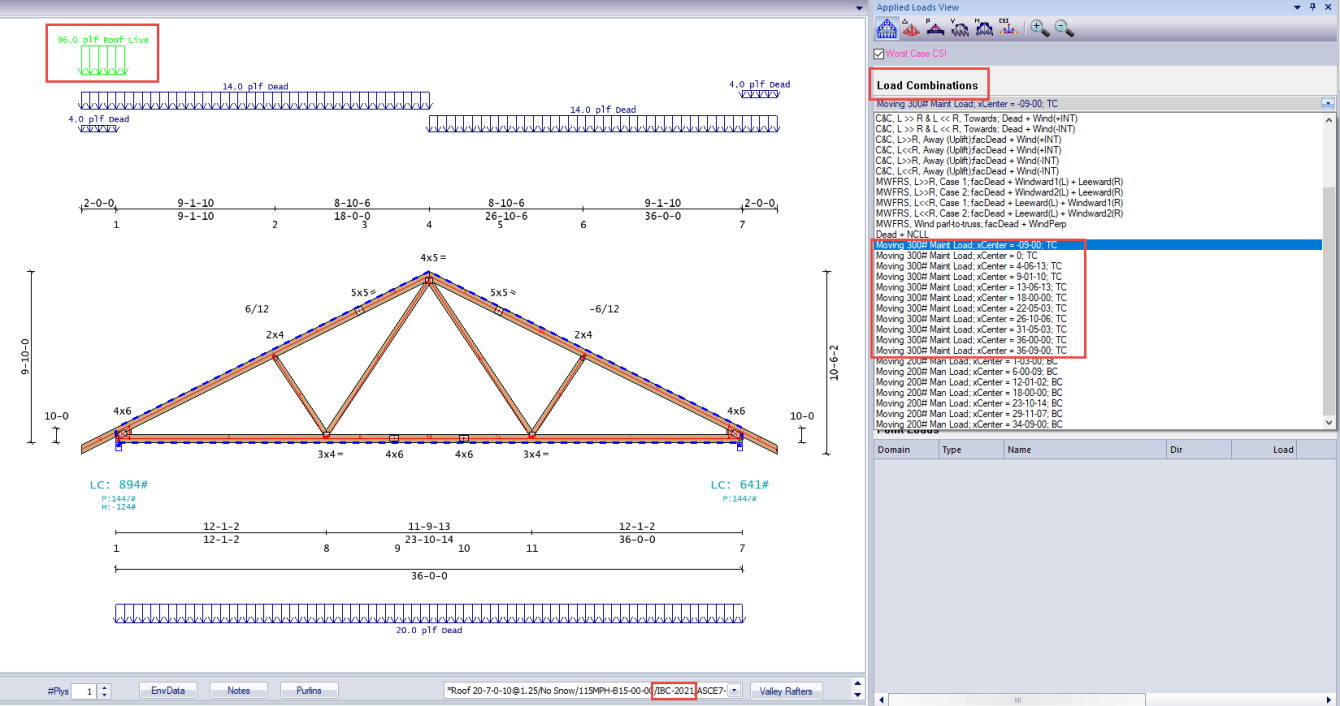
300 Lbs TC Maintenance Load Cases
Similarly, Truss Studio creates separate load cases for the 200 lbs. accessible ceiling.
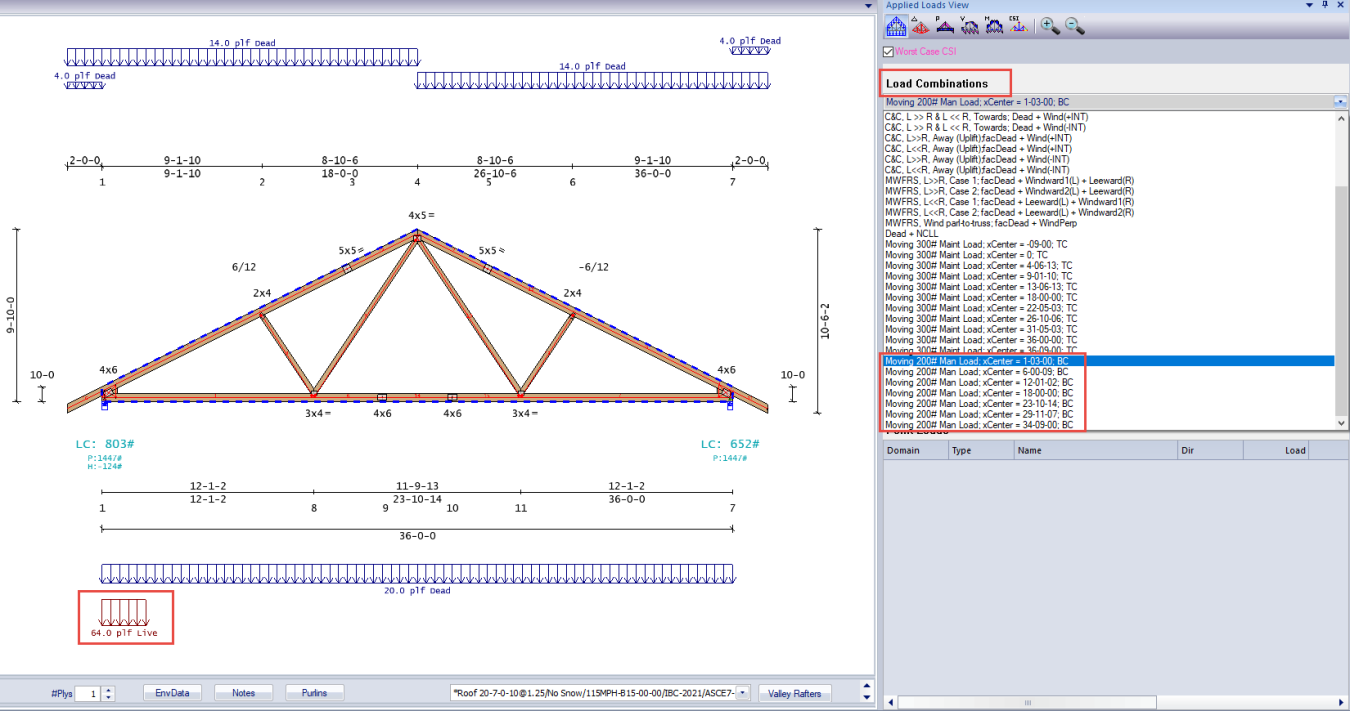
200 Lbs BC Man Load Cases
- In both cases, the load is applied to the truss per code using a 30” x 30” area.
- Checks 3 and 4 do not apply to floor trusses.
The bottom chord accessible ceiling load should be applied to roof trusses, where a ceiling is accessible for maintenance through a scuttle (attic opening), dropped ceiling, or skylight ribs.
The 2000 Lbs Safe Load is applied based on occupancy or use. It is generally required in offices, manufacturing, and storage warehouses. If a TCLL of 50PSF, 80PSF, or 100PSF is used for a truss, it may indicate this check should be used. When enabled, Truss Studio generates moving point load cases using a 30” x 30” area per code, as shown below.
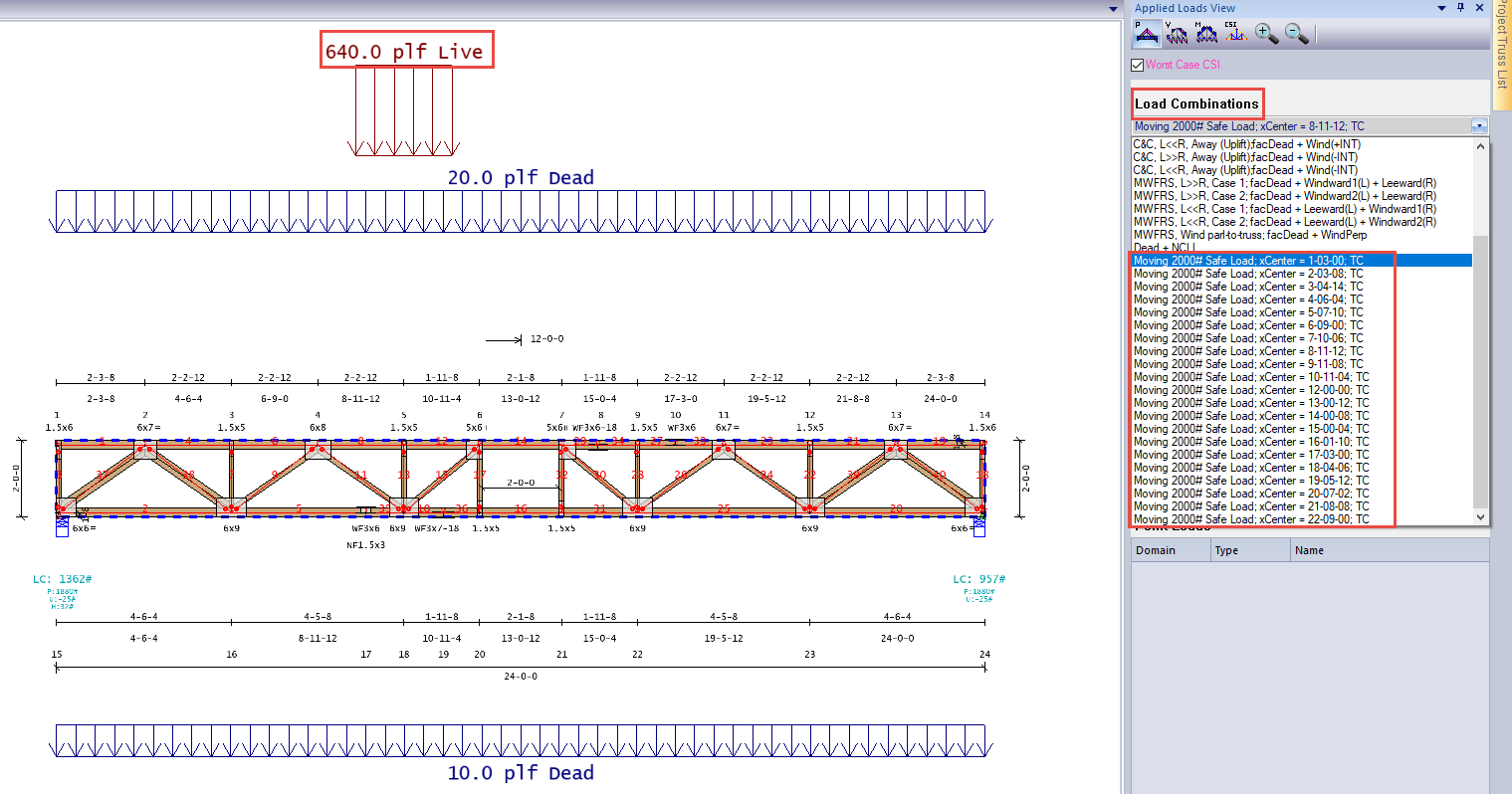
2000 Lbs Safe Load Load Cases
• Check 5 does not apply to roof trusses.
Exceptions: Agricultural trusses and trusses used in Category I occupancy generally do not require additional load checks to be enabled. This should be verified with the building designer. Trusses designed for Agricultural use typically do not meet the building occupancy or use requirements as described above. In many situations, agricultural trusses are designed with spacing greater than 24” on center, in which case the trusses will not be able to support a storage load without special considerations.
Required Actions
Use Design Checker in CS Director before submitting any trusses for seals. The Design Check feature in CS Director indicates when there is any variation in the expected design load checks, based on the code used for design.
- Click Design Check on the Tools toolbar to check you designs. This function checks for inconsistencies in the job, including the Live Load settings in Truss Studio.
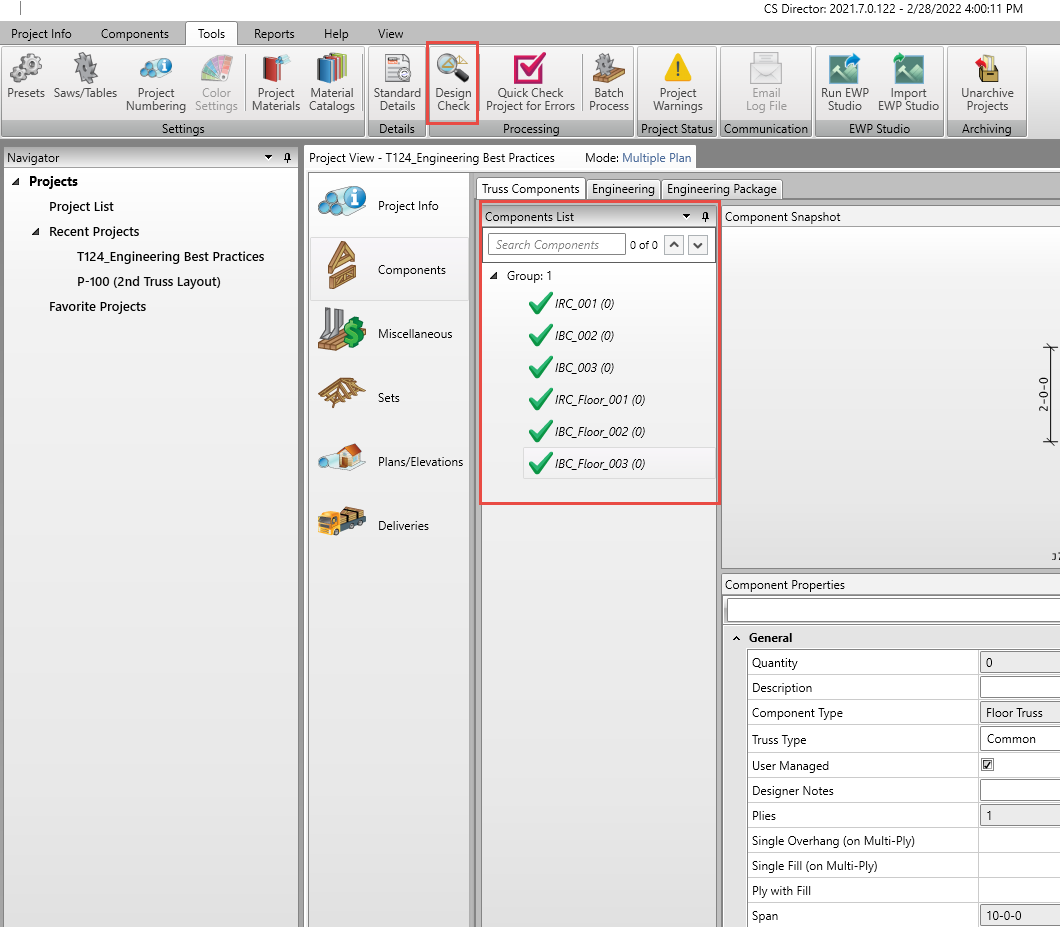
The Truss Information window displays, indicating in red whether there are any inconsistencies in the job. The tabs indicate the type of inconsistency and are also highlighted red.
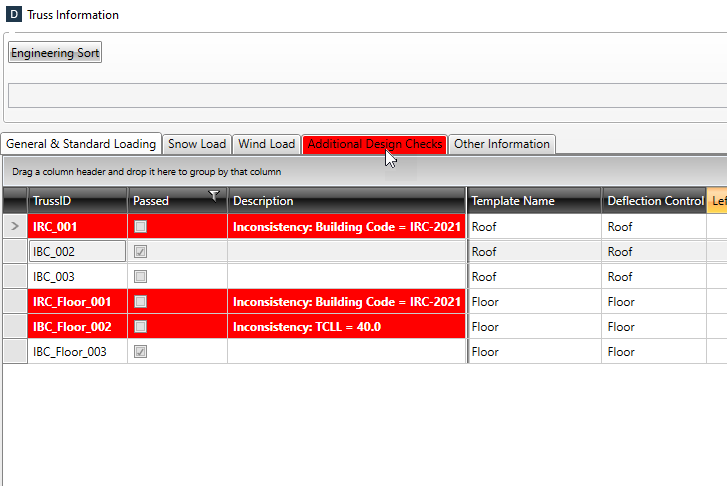
- Click the Additional Design Checks tab to display a detailed error listing.
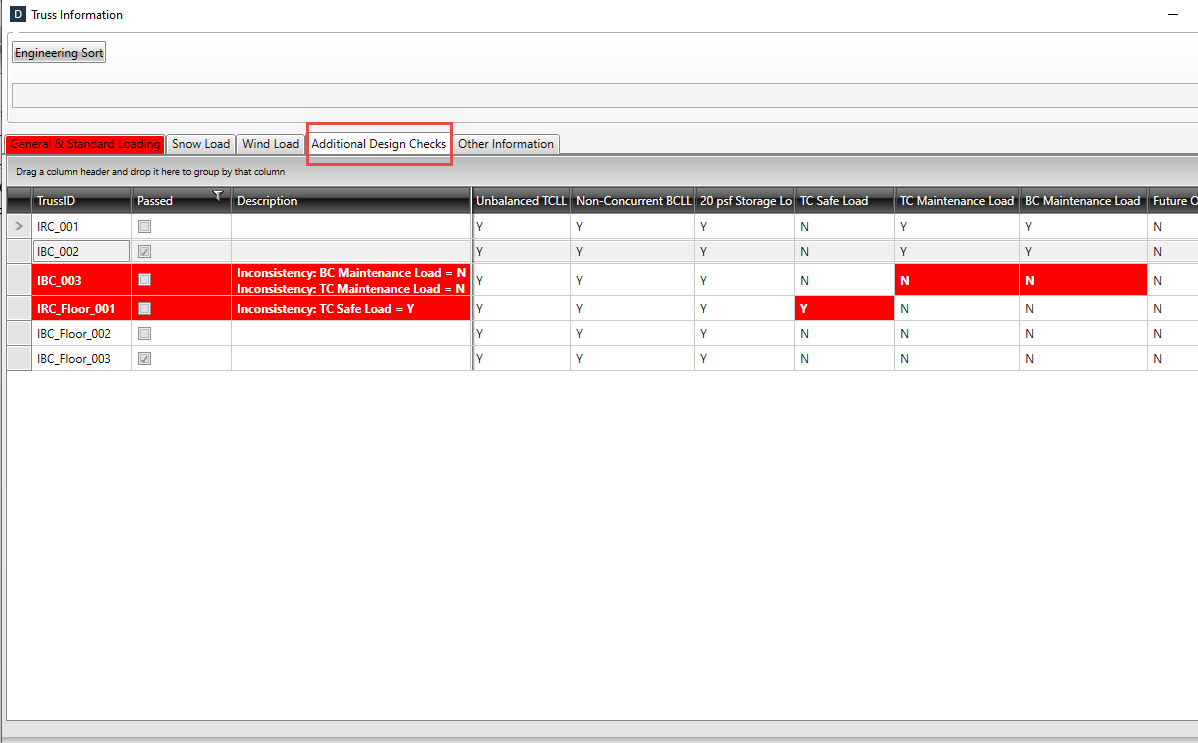
In this example job, the Design Check detected that truss IBC_003 was run with BC maintenance loads and TC maintenance loads turned off, which may be incorrect per the IBC code.
It also detected that the IRC_Floor_001 truss was run with a TC commercial safe load, which may not be required for the IRC.
Verify any variations prior to submitting trusses. If the correct settings are used, a note should be added to the submittal indicating that the variations are per building designer or acceptable for the occupancy/use of the building. If the variations were not expected and are incorrect, correct the loading applied to the truss prior to submitting the job for seals.
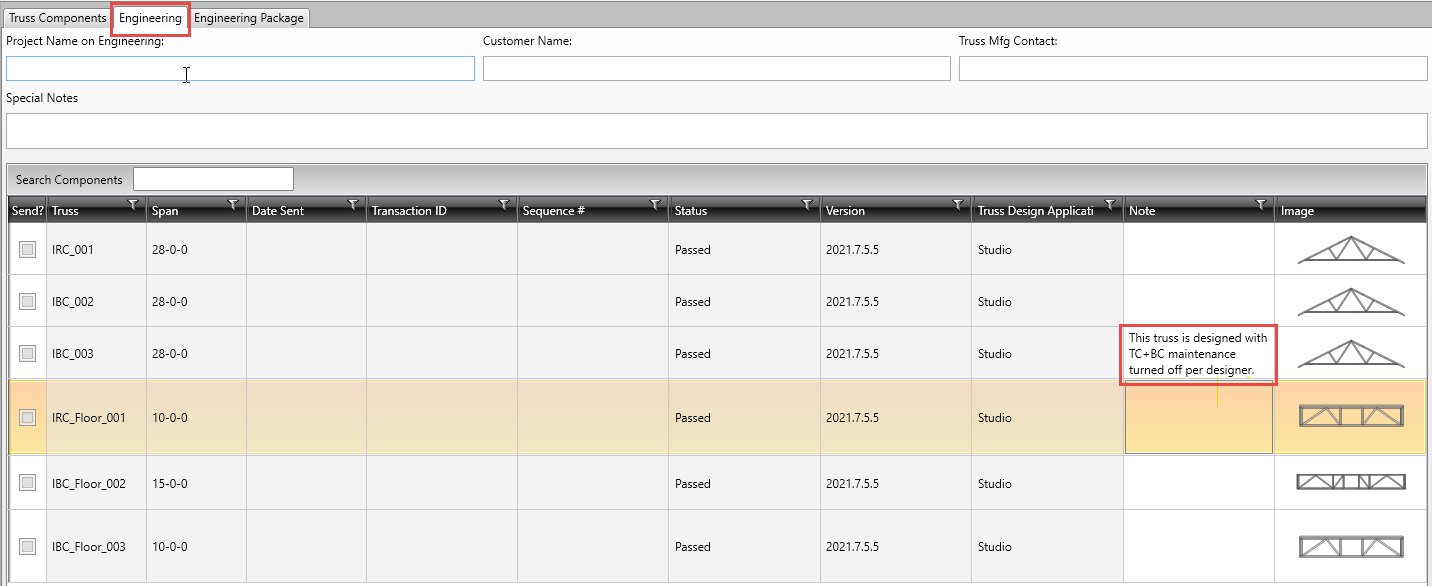
- Enter a Note on the Engineering tab in Components to indicate the design is acceptable when there is an inconsistency.
This note indicates to the Component Review team that the inconsistency is correct as designed, and that the truss can be reviewed as submitted. This improves the turnaround time for obtaining seals because the job will not be placed on hold to verify the information.
- Review the components with inconsistencies to validate them and/or correct the settings.
Related Topics