Purpose
Align an imported PDF, DWG, and DXF image to an existing object. Sometimes, imported images are not aligned in an orthographic direction; this is especially true with scanned PDF files. The Align commands allow you to align the imported image with existing Truss Studio objects such as walls, lines, and worklines.
Steps
- Import a PDF, DWG, or DXF file into layout.
- Click Align
 on the Input toolbar or select Align from the Import menu.
- Select two points on the imported image.
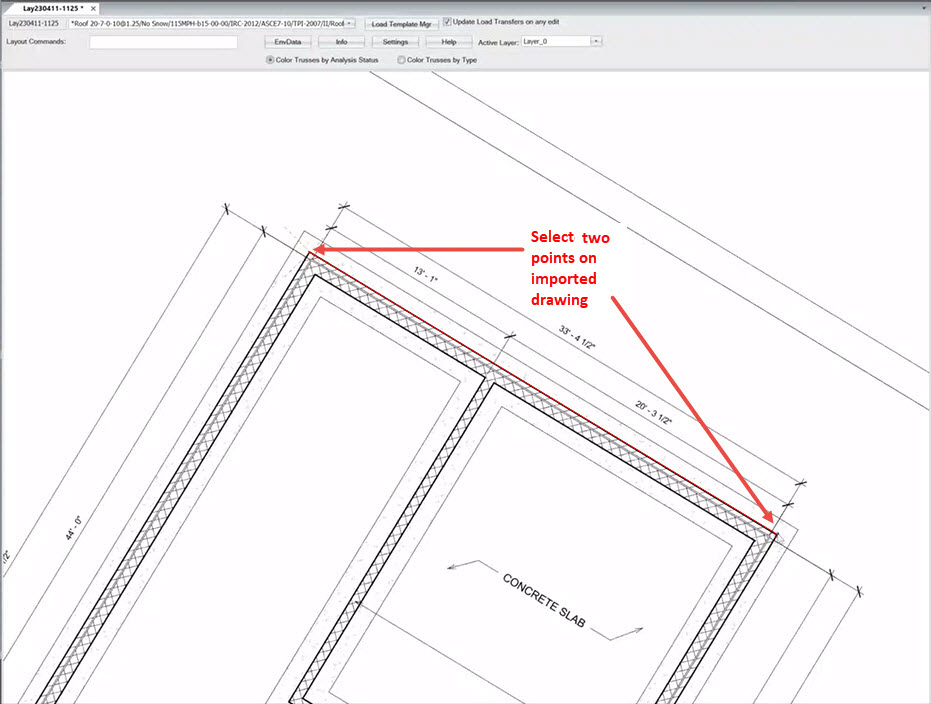
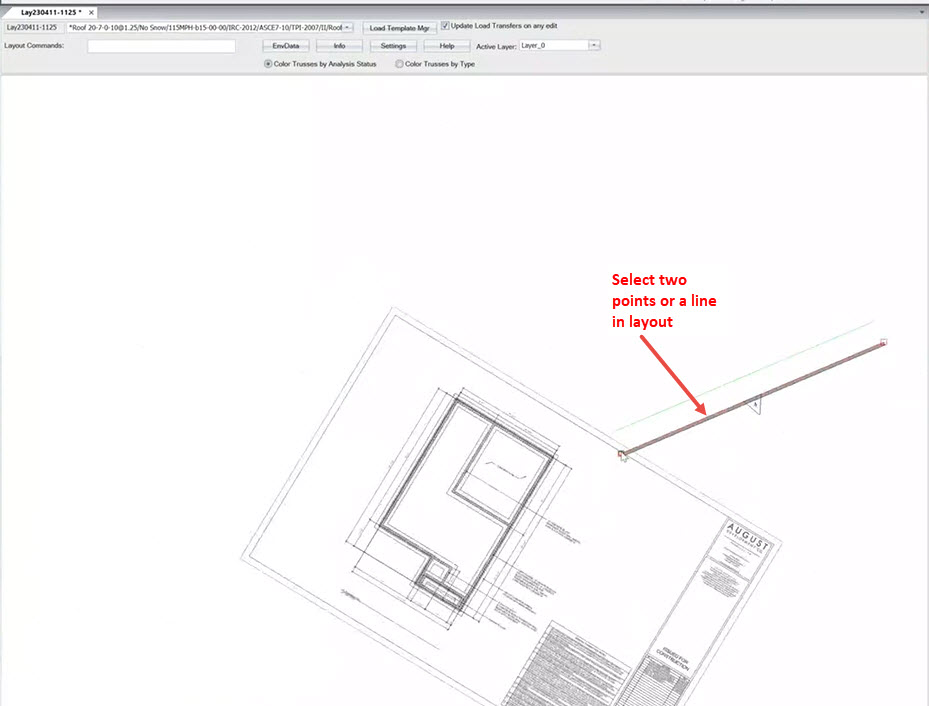
- Select two points in the layout or select a single wall edge or line.
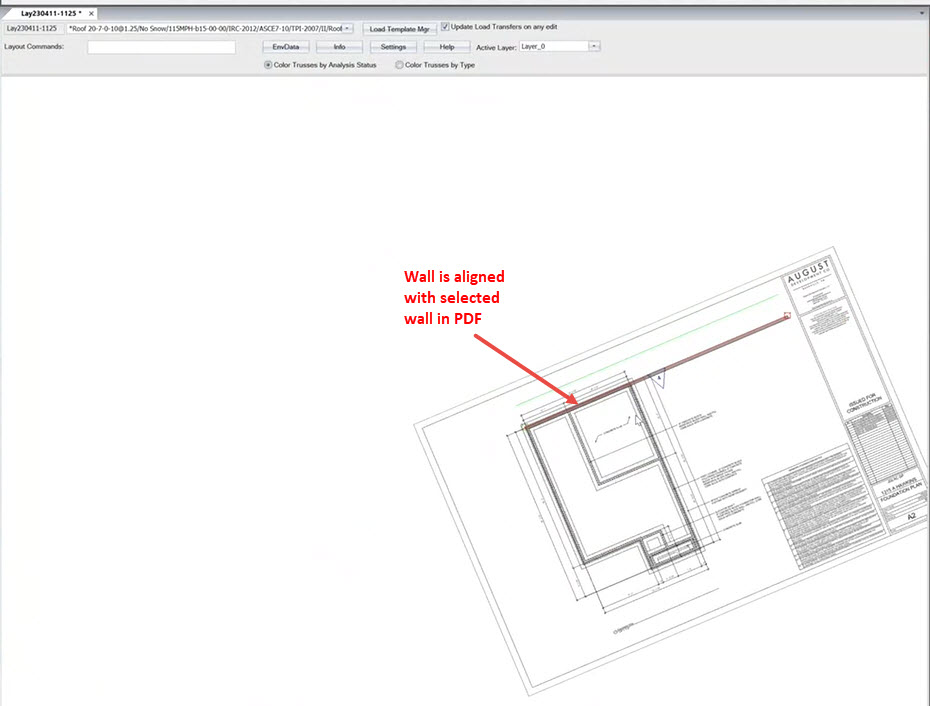
The imported image aligns with the line selected in the model space.
 Notes:
Hold Ctrl while selecting a point to toggle snap points off.
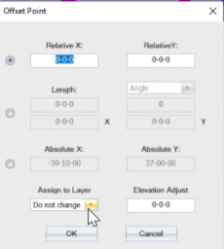
Press space bar to offset points and change layers.
Related Topics