Purpose
Conveniently copy all or part of a layout to the clipboard and paste into another layout. The Paste command is enabled after Copy Selected and Copy All commands are executed, allowing for quick pasting of objects in the same layout.
Steps
Select part or all of a layout.
From the General menu, select Copy Selected or Copy All.
The selected items are copied to the clipboard. A prompt displays indicating that you must select an origin point. Press space bar before selecting the point to offset it.
Select an origin point.
Select the point on the layout where you want to paste.
If you are pasting into a blank layout, you are not prompted to select an origin point.
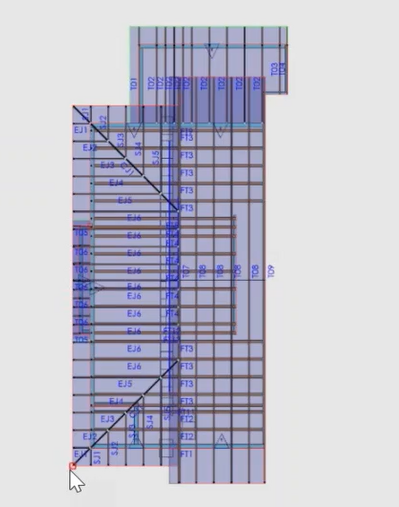
The layout is pasted at the specified location.
 Notes:
If you exit the Copy commands without pasting, the items remain on the clipboard and are available the next time you use the Paste command. Remaining in the Paste command allows you to paste multiple copies. Undo exits the command and undoes the last paste.
Pasted trusses maintain their profile when you copy them into another layout. Copied trusses become locked after pasting. Use the Apply Load Template function to update the loading.
After using the Copy All command, the Layout view adjusts to show all objects on screen.
If copying and pasting into an existing layout that contains trusses with matching labels, a dialog displays.
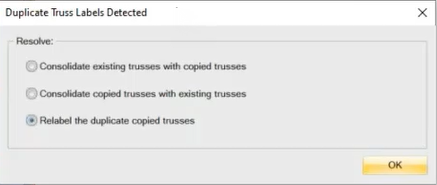
Consolidate existing trusses with copied trusses - Any existing trusses take on the profile of the copied trusses
Consolidate copied trusses with existing trusses - Copied trusses take on the profile of existing trusses
Relabel the duplicate copied trusses - Relabels trusses with the next available label, to prevent duplicate labels.
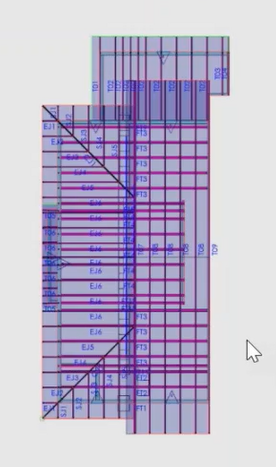
You can continue to paste layouts into different locations. You remain in the Paste command until you exit.
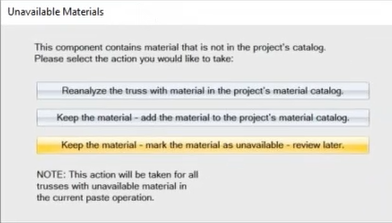
Note: If you paste trusses into a layout that does not have the same materials as the copied trusses, a message displays.