Purpose
Define different colors for dimension, label, and note text in Layout.
Steps
 Watch video
- From the Layout workspace, click EnvData.
The Env Data window displays.
- Click Font Settings.

The Font Settings window displays.
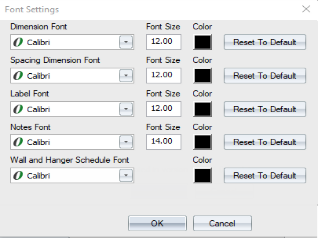
- Select font styles from the drop down lists.
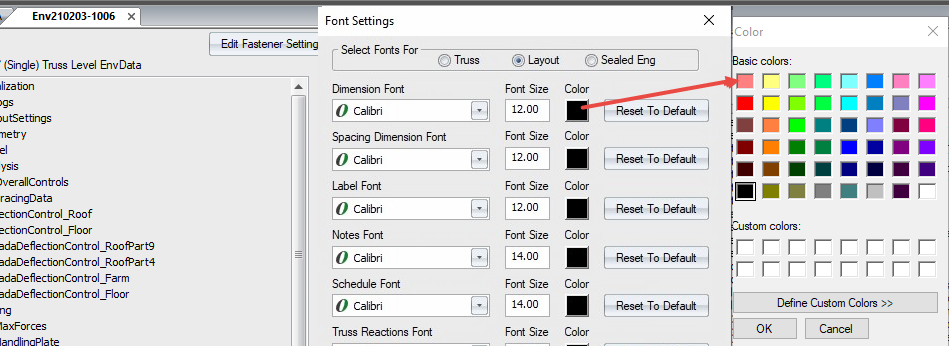
- To define a color for each font type, click the Color icon.
A Color dialog displays where you can choose a color.
 Notes:
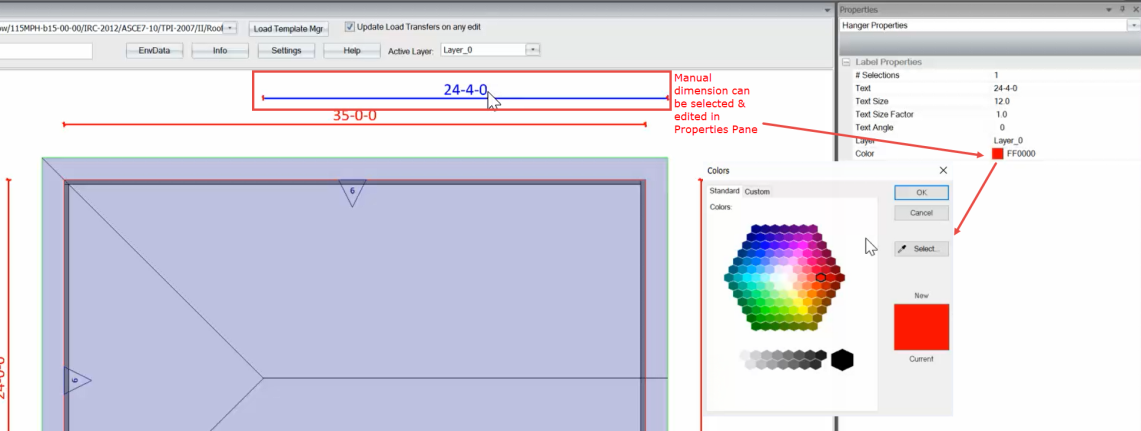
Note Fonts, Label Fonts, and Spacing Dimensions Fonts can be edited in the Properties Pane. Each label, note, or spacing dimension label can be selected individually and defined in a different color.
Layouts may include auto dimensions and manual dimensions. Auto dimensions are attached to a wall and are represented by the Dimension Font; they can be changed only in the Font Settings dialog and are applied globally. Manual dimensions are not attached to a wall and can be changed in the Properties Pane.
Related Topics