Purpose
Auto-save automatically creates a backup file of a layout’s current state at the time the backup file is created. When enabled, a backup file is saved to the specified location. Note that only one backup file exists at any one time; this means that the newest backup file replaces the pre-existing backup file.
It is possible for Truss Studio to encounter an exception and exit abruptly without saving. In some scenarios, the information from within the layout (.tdl) files may be erased, resulting in an empty file. In these cases, the only recovery option for the Layout file is via the Auto-save directory.
Prerequisites
Env Data > UserInterface > Auto-save interval (seconds), or 0 to disable must be set to greater than 0.
A layout must be open in Truss Studio Layout view.
Steps
Change the auto-save EnvData setting in the global preset templates, using the following steps:
From Director > Tools > Presets > TrussStudio, select Edit EnvData.
Navigate to User Interface > Auto-save interval (seconds), or 0 to disable.
Specify a value, in seconds, to define how frequently a backup file is automatically saved.
 Note: The recommended interval time is between 300-600 seconds (5-10 minutes). Using a shorter interval may impact performance, while using a longer interval could result in more lost work in the event that Truss Studio encounters an error.
To change the auto-save directory location:
- From the Environment menu, select Edit EnvData.
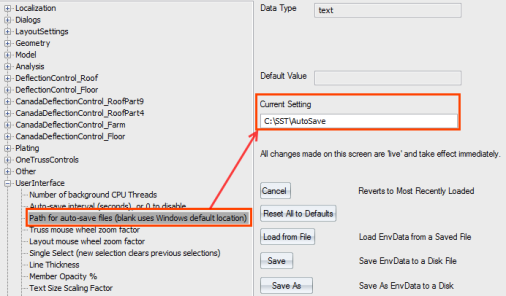
- Navigate to User Interface > Path for auto-save files (blank uses Windows default location).
- It is recommended that you enter the following in the Current Setting box: C:\SST\AutoSave
In the event that the .tdl becomes lost, locate the backup .tdl file in the saved backup location defined in Step 3. The backup file name does not reference the project name, so it is recommended to sort by date to identify the correct backup file to use for restoring the layout file.
Once the backup file is identified, perform the following procedure:
- Copy the auto-saved backup .tdl file and paste it into the Project's Plans/Elevations folder.
- If the original (empty) .tdl file exists in the live Projects folder, note (and copy) the file name (this will be needed later).
- Delete the original "empty" .tdl file
- Rename the auto-saved backup .tdl with the name of the original .tdl file.
- From CS Director, open the Truss Studio layout and save it.
Notes:
The recommended interval time is between 300 – 600 seconds (5 – 10 minutes). Using a short interval may impact performance, while using a longer interval could result in more lost work in case Truss Studio encounters an error.
If you manually save more frequently than the defined auto-save interval, an auto-save also occurs; this ensures that file backups are made at regular intervals. You must perform an initial manual save before the auto-save function is enabled.
To recover information saved to an auto-saved backup:
- Click File > Restore.
A list of backup (.bak) files displays.
- Select a file to restore and click Open.
Related Topics